PDF tools

Free PDF tools that never upload your file

Four PDF jobs, one hub. Fix a sentence in a contract, merge twenty photos into a single document, turn meeting notes into clean pages, or send a CAD drawing to a client who has never opened AutoCAD — all inside your browser tab, where the file already is.

100% private No file limit No watermark No signup Works offline
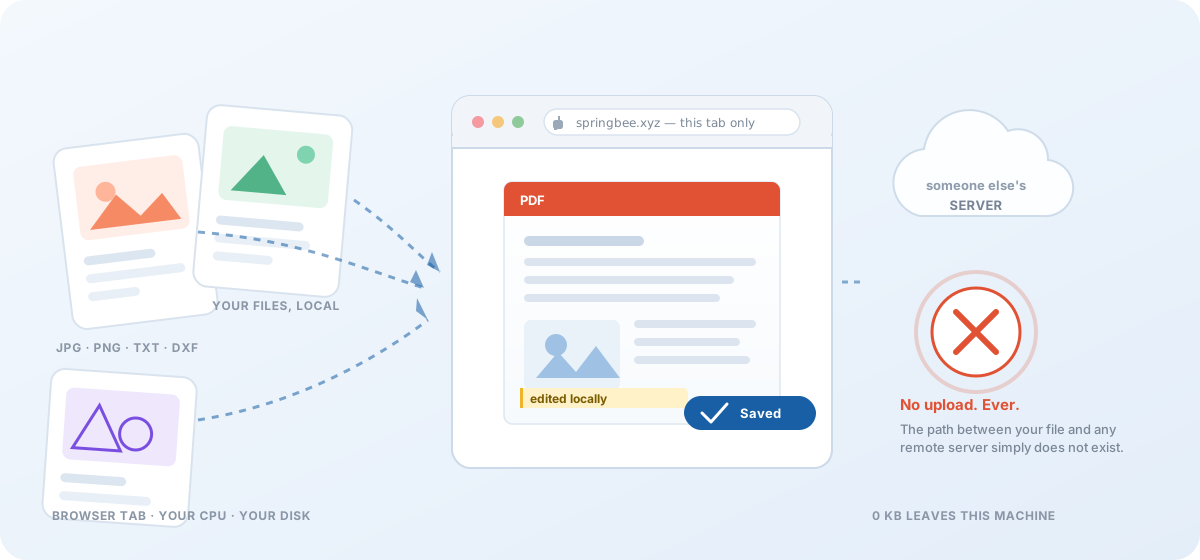
Files are opened, converted and saved inside your own browser tab; the arrow towards any remote server is crossed out.

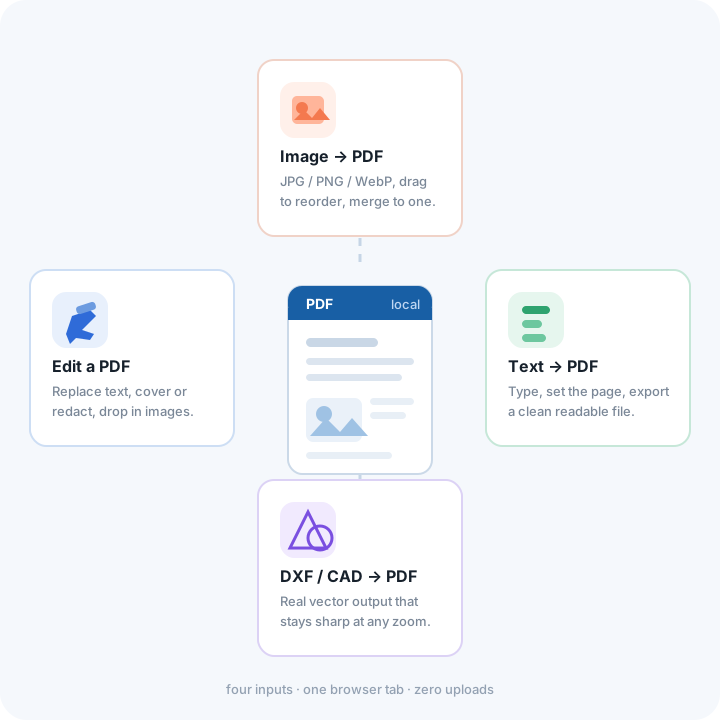
The four PDF tools in this hub

Each tool does one job and hands the result straight back to you. Nothing is queued, quoted or held for review.

All four are free, unlimited and anonymous. There is no account to create, no "two free exports per day" counter, and no email address required to download a result.

One hub instead of four bookmarks

Most PDF work is not one big project — it is four small ones that turn up in the same week. You receive a PDF with the wrong date on it, you photograph ten pages of a signed form, you need to hand over notes that are not a screenshot, and someone asks for the floor plan "as a PDF please".

Keeping those four jobs on one page means one privacy model to learn rather than four sets of terms to read. Whichever tile you click, the file is opened with your browser's own File API, processed by JavaScript in that tab, and handed back to you as a download. There is no upload step in the middle, because there is no server waiting to receive anything.

  • Contracts, invoices and HR files never sit on a machine you do not control.
  • Big local files start instantly — no upload bar before the work begins.
  • Repeat work costs nothing extra: no page counters, no daily caps, no queue.
Diagram: images, text, a DXF drawing and an existing PDF all feed into one PDF document produced locally.

How it works

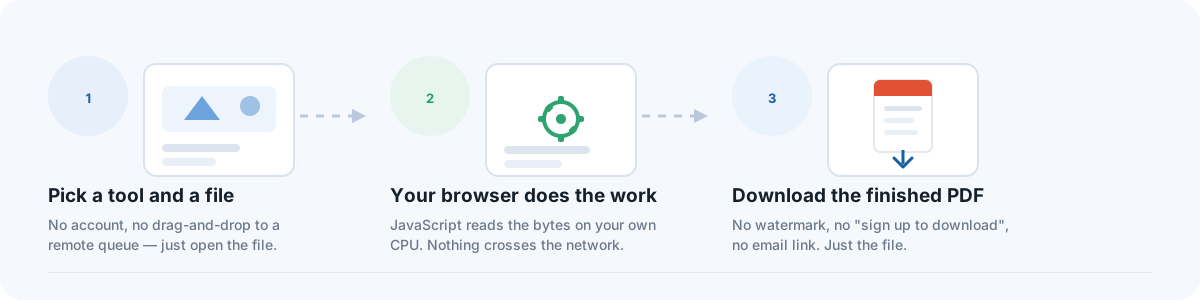
Three steps, and step two happens on your own processor.

Three steps: pick a tool and a file, let the browser do the work, download the finished PDF.
1

Choose the tool and open the file

No drag-and-drop onto someone else's infrastructure: the file picker talks to your operating system and nothing else. If the PDF you need to edit is already on this machine, that is where it stays.

2

Your browser does the work

Rendering uses pdf.js, the same engine Firefox uses to display PDFs; writing uses pdf-lib. Both are JavaScript running in your tab, so sensitive pages are drawn and rebuilt locally rather than shipped somewhere for processing.

3

Save the finished PDF

Export produces a new file — your original is never modified. No watermark, no "create an account to download", no waiting for an email link that expires in 24 hours.

How this compares with upload-based converters

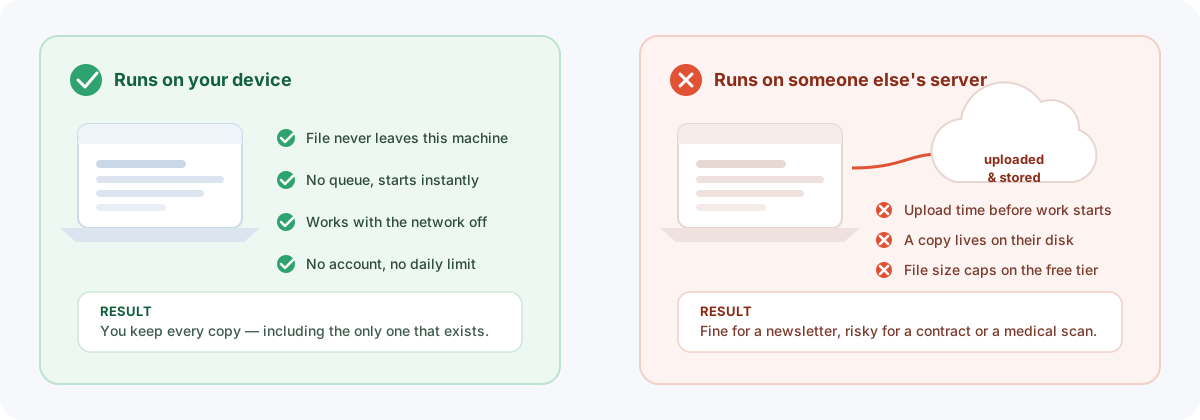
The well-known online converters are good products and we are not pretending otherwise. The difference is not the quality of the output — it is where the bytes go in the meantime.

 The tools in this hubTypical upload-based converter
Where the file is processedYour deviceA remote server
Upload requiredNeverAlways
Sign-up before downloadNoOften, on the paid tier
File size capYour RAM onlyFree tier limits apply
Watermark on outputNoneSometimes on free plans
Usable with no internetYes, once loadedNo
Copy retained elsewhereNo copy existsUsually stored briefly
PriceFreeFree tier paid for with file limits

To be fair, uploading has advantages: a remote server will convert a 500 MB file on a phone that could never do it alone, and cloud tools often do things local JavaScript cannot, such as reliable OCR or heavy compression. If your document is genuinely public — a conference agenda, a published datasheet — any reputable converter will do the job well. The calculus changes for anything you would hesitate to hand to a stranger.

The converters most people reach for first

A short field guide to the services people usually have bookmarked, what each one is good at, and the one trade-off to be aware of. We link to them because knowing the difference helps you choose, not because they are bad — every one of them is a mature product.

Smallpdf Switzerland · since 2013

The best-known all-rounder, with dozens of tools under one interface and a clean, obvious layout — genuinely the benchmark this page borrows its structure from.

Trade-off: files are uploaded to their servers to be processed. Fine for everyday documents, worth thinking twice about for anything confidential.

iLovePDF Spain · since 2010

Strong batch handling and a browser-friendly flow for merge, split and compress jobs; its API is widely used in other people's software.

Trade-off: also server-side, which means waiting on the upload for large files and trusting their retention window.

Adobe Acrobat online USA · the PDF standard

The reference implementation of the format itself, so fidelity on complex documents is as good as it gets, and conversion of tricky layouts rarely breaks.

Trade-off: conversions run in Adobe's cloud, and the free tier is designed to lead you towards a subscription.

Sejda PDF Desktop Portugal · open source

A downloaded application rather than a website, so files are processed locally — the closest in spirit to what these four tools do, plus OCR and form filling.

Trade-off: free usage is limited per day, and it is software you install and update instead of a tab you open.

ILoveIMG / image suites Various

Excellent at image-side work such as resizing, HEIC conversion and compression before a picture ever becomes a PDF page.

Trade-off: images are uploaded too — which is where our own background remover, running fully offline, is a better fit.

Descriptions reflect each product's own published feature pages and are our honest reading of them; check the source before relying on specifics. We have no affiliation with any of them.
Comparison of a local browser tool, where the file stays on the device, and an upload-based converter, where the file is copied to a server.

Why everything here runs on your device

This is not a marketing flourish — there is no backend to this site's tools at all, which makes the privacy promise structural rather than contractual. If nobody receives your document, nobody can leak it, lose it, or be compelled to hand it over.

The honest trade-offs: heavy work uses your own CPU, so a 40 MB drawing is slower on a five-year-old phone than on a laptop. State lives in your browser's local storage and will not follow you to another device unless you export it. And a few tools load an open-source library or a small model from a public CDN the first time you use them — the page says so whenever that happens.

Private by construction

No upload means no copy to delete later, no retention window to read, and nothing to lose in a breach. The strongest privacy policy is the one with no data to describe.

Fast on real files

Work begins the instant you pick the file instead of after a transfer. Small jobs feel immediate, and there is no queue behind you.

Available offline

Once a page has loaded you can drop the connection and keep editing, merging or converting — handy on a plane or behind a locked-down office network.

Which tool should I use?

If you are not sure which tile above fits, this is usually enough to decide.

The file exists and something in it is wrong

Wrong date, outdated price, a name misspelled: open it in the editor and click directly on the text to replace it in place.

You need to black something out before sharing

Drag a box over it with the cover tool. The area is painted over in the exported file — see the redacting guide for how to do it properly.

You photographed a document in ten pieces

Merge the photos into one PDF and drag them into the right order first; nobody has to click through ten attachments.

Somebody asked for a drawing as a PDF

Convert the DXF to true vector output so the client can zoom to 800% and still see clean lines, without installing CAD software.

You have the words but not the document

Type or paste the content and export properly paginated pages with real selectable text rather than a screenshot.

The scan came out grey and blotchy

Run it through the repair bench for auto contrast, denoise and sharpening, then place the cleaned page back into the PDF.

PDF tools FAQ

Is my PDF uploaded to a server?

No. Each tool reads the file with your browser's File API, renders pages with pdf.js, and writes the new document with pdf-lib — all JavaScript running in your own tab. There is no server component that receives your document, so there is nothing to store or forward.

Are the tools really free, with no daily limit?

Yes. No page counters, no "two free conversions today", no export caps. The site is funded by advertising, which is why you may see ads around the tools — never injected into the content you are editing.

Can I use these PDF tools offline?

Yes, once the page itself has loaded. Reload while you are online, then disconnect: rendering and export continue to work because every library involved has already been cached by your browser.

Is there a file size limit?

No artificial one. The real ceiling is your device's memory — a current laptop comfortably handles files well past 100 MB, while an older phone may slow down somewhere above 20 MB.

Can I edit a scanned PDF?

You can change how it looks, which is usually what matters. A scan has no text layer to select, so use the cover tool to mask the old content and the add-text tool to type over it in any language your fonts support.

Will the exported PDF carry a watermark?

None at all — no logo, footer badge or trial notice. There is also no account step between clicking export and having the file.

What happens to my file when I close the tab?

Nothing remains anywhere. Tools that remember state keep it in your own browser's local storage; clear site data and every trace is gone. Keeping things on your device is a privacy advantage, but it also means there is no cloud copy to recover.

Is there anything these tools cannot do?

Optical character recognition of scanned pages needs another service, very large-batch processing is impractical in a tab, and password-protected files must be unlocked elsewhere first. Everything else here is a solvable local job.

Guides worth reading before you share a file

Longer write-ups on the jobs where doing the work locally actually changes the outcome.

How to redact a PDF properly

Why dragging a black box can still leave the original words recoverable, and how to cover content so that it is genuinely gone.

Converting DXF drawings without uploading them

What vector output means for a client who will zoom in, and how fidelity compares with a rasterised screenshot.

What offline image processing really buys you

The privacy and latency difference between an on-device model and an image upload service.

Browse all 15 tools

Unit and colour converters, JSON formatting, QR codes, word counts, mortgage comparisons and more — all local.