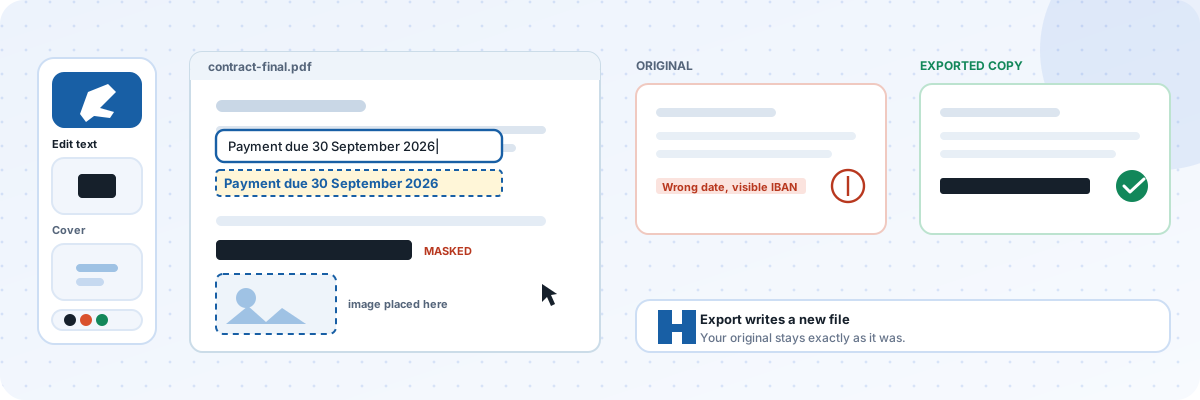
Edit text inside a PDF, cover or replace images, add new content, and repair photos before placing them into the PDF. Everything runs locally in your browser — your files are never uploaded.
🛠 Image Repair (use standalone, or fix a photo and place it into the PDF)

How this editor works
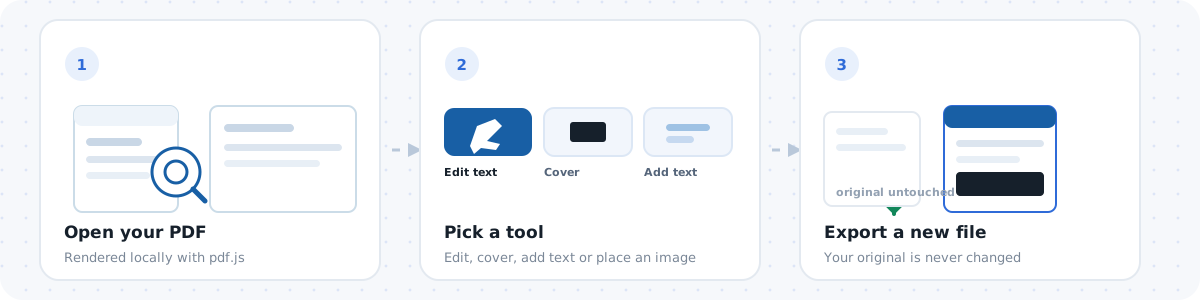
Three steps, and every one of them runs on your own machine — no server sees the file.
What can this PDF editor do?
This page bundles three everyday PDF chores into one tab. First, text editing: click any piece of text on the rendered page, type the replacement, and the original characters are covered cleanly and your new text is drawn in the same spot — the exported PDF keeps everything else untouched. Second, image and layout fixes: drag a box to mask or white-out anything (old logos, wrong numbers, stamps), then place a new PNG or JPEG exactly where the old artwork used to be. Third, an integrated photo repair bench: auto contrast, denoise, sharpen and 2x upscaling, handy when the picture you want to insert came out of an old scan.
How to edit text in a PDF, step by step
Open your PDF with the file picker. Make sure the ✏️ tool is active, then click directly on the sentence you want to change. A small input box appears on top of the original text — type the correction and press Enter. Repeat for as many edits as you need; every edit is listed as an undoable action. When you are done, click "Export edited PDF" and the corrected file is generated locally and downloaded.
Is my document uploaded anywhere?
No. The PDF never leaves your device: rendering and editing run on the HTML canvas, and the final file is assembled by pdf-lib inside your browser tab. There is no server, no account, and no watermark. You can even disconnect from the internet after the page loads and keep working.
FAQ
Can I edit scanned PDFs? You can cover and replace anything visually — draw a box over the scanned text and type new text on top. Scanned pages have no real text layer, so the ✏️ tool will not detect individual characters there; use the Cover / mask tool instead. See the warning above: covering hides the words visually but does not delete them from the file.
Which languages can I type? Any language your device fonts support — Chinese, Japanese, Korean, Cyrillic, Arabic and Latin all work, because replacement text is rendered as a high-resolution stamp.
Can I repair a photo before inserting it? Yes — fix the picture in the Image Repair panel below the editor, click “Use as PDF image”, switch to the 🖼 tool and click where it should go.
How to edit text and images in a PDF
- Open a PDF with the file picker. The first page renders in the viewer; use Prev / Next to move between pages, and keep edits on the page you are viewing.
- Choose a tool: Edit text (click the words you want to replace), Cover / mask (drag a box to hide an area visually only — see the warning above), Add text (click where it should go), or Place image (pick a file, then click the page).
- Make your changes. In Edit text mode, clicking detected text opens an input box right on top of it; type the replacement and press Enter (Esc cancels). In Cover mode, drag a rectangle and release.
- Export. Click Export edited PDF and save the new file. The original is never modified — you always get a copy.
How it works
Reading uses pdf.js, the same rendering engine Firefox uses, which draws each page onto a canvas and exposes a text layer with the position of every text run. Writing uses pdf-lib, which produces a new PDF document. Text replacement is therefore a two-step operation: a white rectangle is drawn over the original text, and your replacement is written at the same position at high resolution. That approach is what makes it possible to write any language — Chinese, Japanese, Arabic, Cyrillic — even when the original PDF does not contain a font for those characters. Editing is applied page by page, and you can undo the last change or clear a page before exporting.
What it can and cannot do
- Can: replace visible text, mask areas visually, add new text in any language, insert images, and repair a photo before placing it.
- Cannot perform true redaction. Masking paints over an area; the hidden characters remain in the file's content stream and can be extracted. Removing them permanently requires rewriting the page's content stream and scrubbing metadata, which is a different job — start with the redaction guide.
- Cannot reliably edit scanned documents. A scan is a picture of a page with no text layer, so there is nothing to click. Use the Cover tool to mask the old content and Add text to type over it.
- Cannot open encrypted or password-protected PDFs unless you have already unlocked them — remove the restriction in another application first.
- Cannot reflow the document. Replacing a short string with a long one does not push the surrounding text down; it overlays it, so keep replacements similar in length or cover and retype the paragraph.
- Complex layouts (multi-column forms, rotated text, unusual encodings) may place text slightly off — check the result before sending it.
The image repair panel
Below the editor you can open a photo and apply auto contrast, median denoising, sharpening and 2× upscaling, comparing the before and after side by side. It is useful for scanned pages, screenshots and product photos that are a little flat or noisy. When you are happy with the result, click "Use as PDF image" and then click the page to place it. Like everything else, this runs locally.
Why editing locally matters
Contracts, invoices, medical forms, ID scans and HR documents are exactly what people need to mask or correct — and exactly what should not be uploaded to a third-party service. This editor reads the file with the browser's File API, renders it on your device and writes the new PDF on your device. No upload, no account, no copies retained on any server. Bear in mind that local processing protects your privacy while you work, but it does not by itself make a masked word unrecoverable — that depends on whether you used masking or true redaction, which the FAQ below explains.
What is the difference between PDF masking and true redaction?
The short answer: masking changes what you see, redaction changes what the file contains. They are frequently sold as the same feature, but they operate at completely different depths inside a PDF, and confusing them is how people end up publishing their own account numbers.
A PDF page is not a picture of text — it is a content stream: a sequence of
drawing instructions that says "place these characters at this position in this font",
followed by hundreds more instructions for rules, images and shading. When you drag a
box in this editor, one more instruction is appended to that stream: draw an opaque
rectangle here. It comes last, so it paints over the characters visually. Nothing
else about the page changes. The original text operators stay exactly where they were,
so the words are still selectable and still searchable, and anything that reads the
content stream instead of looking at the rendered page — pdftotext, any PDF
library, your browser's find-in-page, or plain copy and paste — reads straight through
the covering block. Metadata is untouched too: author name, revision history and the
hidden OCR layer behind a scanned page are all unaffected by drawing a shape.
True redaction works on the objects themselves. It has to locate every text run that carries the sensitive string and delete those operators, rebuild the content stream so the page still describes a valid document, remove any annotation, form field or image region that could reveal the same content, strip the OCR layer, bookmarks, embedded files and XMP metadata where the words often reappear, and sometimes rasterise what is left so that nothing reconstructs a silhouette. Skipping the metadata step is the classic failure — a document looked perfectly clean and still shipped its former author's name inside the file properties. Court e-filing rules in most jurisdictions, along with frameworks such as HIPAA and GDPR, assume redaction in this stronger sense.
Both have their place, and local-first processing matters to each. Because everything runs in your tab, masking a confidential contract never hands that contract to a stranger's server — which already removes the single largest leak in typical online PDF tools. But running locally is a privacy property, not a cryptographic guarantee: it protects the file in transit, it does not erase the words inside the exported copy. Use masking when you want something unreadable on screen or in print — a price you do not want visible in a screenshot, a face in a scan that is going into a slide. Use real redaction whenever the file itself leaves your hands, and follow the step-by-step redaction guide before you send it.
Troubleshooting
- Clicking text does nothing: the page has no text layer (it is a scan). Switch to the Cover tool.
- "No text detected here": you clicked a blank area or an image. Click directly on the words.
- Replacement text is a different size: set the font size field to match the surrounding text before clicking.
- Export fails: the file may be malformed or encrypted. Try re-saving it from another PDF reader first.
- Characters look wrong after export: check that the colour and size fields are sensible; a white-on-white text stamp is invisible.
- Rendering is slow on a big document: render one page at a time — the viewer only draws the page you are on.
More questions
Is my document uploaded?
No. Rendering and writing both happen in your browser. Nothing leaves your device and nothing is stored after you close the tab.
Will the original file be changed?
No. Export always produces a new file; your original stays exactly as it was.
Can I edit several pages?
Yes — edits are remembered per page. Move between pages with Prev / Next and export when finished.
Does it keep the PDF searchable?
The exported file keeps the original content plus your additions. Text drawn as an image stamp is not selectable, which is the trade-off that makes any language possible.
People also use this for…
Every tool below is also 100% local: no upload, no account, no server copy — the same privacy guarantee you get on this page.
- Build a PDF from images first
Create the document from scans or photos, then edit it here. - Start from plain text
Draft the content as text, export to PDF, then lay it out. - Cut out an image before dropping it in
Transparent PNGs place far better than a white box.
PDF tools hub
← All PDF tools · Edit a PDF · Image → PDF · Text → PDF · DXF → PDF
Every tool on this strip processes your file inside the browser — no upload, no account, no limit.