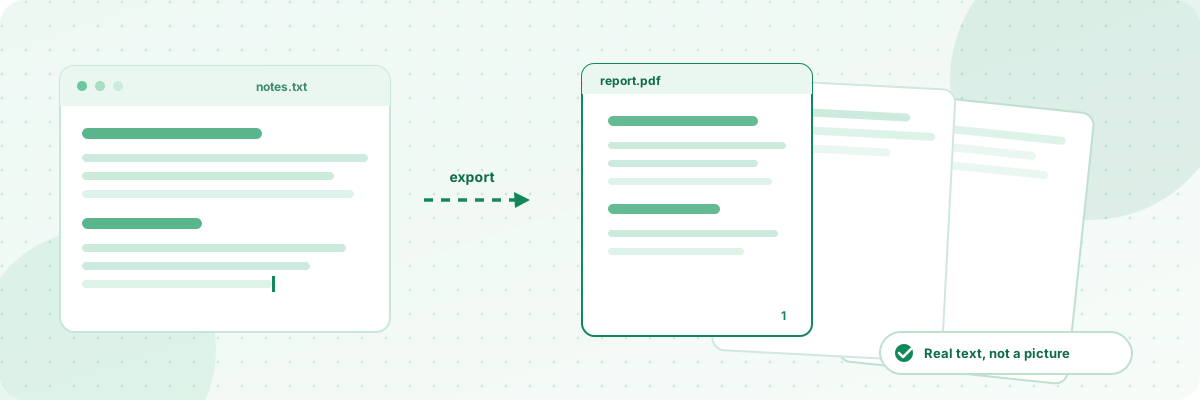
Turn plain text into a clean PDF. Pick the font size, page size and margins. Empty lines start a new paragraph. Text wraps automatically and pages flow across.
How this converter works
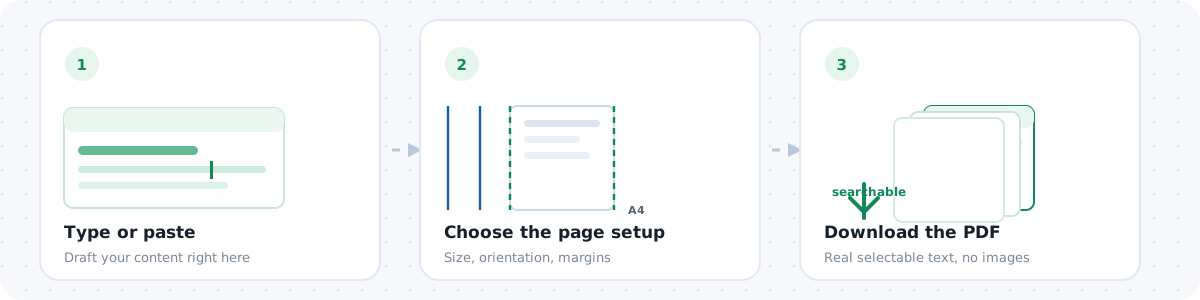
Three steps, and every one of them runs on your own machine — no server sees the file.
Notes
Pages flow automatically. Long text just flows onto more pages — there is no length limit. Text that is purely Latin uses a built-in PDF font, so those files stay tiny. If your text contains Chinese or Japanese characters, a subset of Noto Sans SC is embedded automatically — only the glyphs you actually use go into the file, so the result is still small.
Everything runs locally — your text never leaves your browser.
What this tool is for
Some systems still insist on receiving PDFs. When you have plain text — a report, meeting notes, code output, an essay draft — and the destination wants a document, this tool turns the text into a clean, readable PDF in one step. No Word licence, no printer dialog, no "export" maze.
How to convert text to PDF
- Paste or type your text into the box.
- Choose whether you want one continuous page or automatic page breaks.
- Click run, then download the generated PDF.
Formatting notes
The output uses a readable serif font with sensible margins, designed for text-first documents: notes, letters, instructions, and logs. It is not a layout tool — if you need images, columns, or custom fonts, generate the PDF from a word processor instead. For plain text, however, this is the fastest route from clipboard to document.
FAQ
Is my text uploaded anywhere?
No. The PDF is generated inside your browser tab. The text never leaves your device.
Does it handle long documents?
Yes — with automatic pagination, tens of thousands of words convert without issue; you just get more pages.
Can I convert Chinese or Japanese text?
Yes. A Noto Sans SC subset is embedded automatically whenever CJK characters are detected, so Chinese and Japanese come out as real, searchable text rather than blanks. Korean, Arabic, Thai and Hindi are still not supported — use the PDF editor for those.
People also use this for…
Every tool below is also 100% local: no upload, no account, no server copy — the same privacy guarantee you get on this page.
- Check length and reading time first
Know exactly how long the text is before you set the page size. - Fix the casing before exporting
Convert headings to Title Case in one click. - Then edit the exported PDF
Add images, stamps or corrections.
PDF tools hub
← All PDF tools · Edit a PDF · Image → PDF · Text → PDF · DXF → PDF
Every tool on this strip processes your file inside the browser — no upload, no account, no limit.
How to create a PDF from text
- Paste or type your text into the box. It can be a note, a letter, a terms sheet, a receipt or a plain-text report.
- Pick a page size, a font size in points and a line height. 11–12 pt with 1.4–1.5 line height reads like a normal document.
- Click Generate PDF. Long text is wrapped and paginated automatically, then downloaded.
- Open the result to confirm the pagination landed where you expected before sending it to anyone.
How it works
The text is measured and wrapped line by line, split into pages once a page is full, and written into a PDF assembled by pdf-lib in your browser. No server is involved at any point: nothing you type is uploaded, and the file is produced and downloaded on your device. That makes it safe for drafts, HR documents, legal notes and anything else you would rather not paste into an online service.
Chinese and Japanese text
Chinese works properly. When your text contains CJK characters, the tool embeds a subset of Noto Sans SC (SIL Open Font License) into the PDF. The result is real, selectable text: it renders, searches and copy-pastes correctly in any reader. Only the glyphs you actually use are written into the file, so a page of Chinese usually adds well under 100 KB.
The font is downloaded once and then cached by your browser. It is served from this site, never from a third party — and it is a font file, not your content: your text is still handled entirely in your browser and never uploaded.
Two honest caveats. First, the embedded subset covers the common Simplified Chinese and Japanese character sets; if you paste something outside it, the result message tells you which characters are missing rather than failing silently. Second, scripts we ship no font for — Korean, Arabic, Thai, Hindi — are still not supported here. For those, place your text in the PDF editor, which renders it as a high-resolution image using the fonts installed on your own device.
Formatting tips
- Keep blank lines between paragraphs — the paginator respects them.
- Avoid tabs for alignment; use spaces, since tab stops are not supported.
- For a signature block, leave several empty lines rather than drawing a line of underscores.
- Copy the original text into a note before generating, in case you want to re-generate with different settings later.
Troubleshooting
- Chinese or Japanese text comes out blank: it should not any more. If it does, the font file failed to load — check your connection on the first run and reload the page.
- A few characters are reported as missing: they fall outside the embedded subset. Use the PDF editor, which renders text as an image using your own system fonts.
- Words break mid-line oddly: very long unbroken strings (URLs, hashes) cannot be hyphenated. Add a space or shorten them.
- Too few words per line: reduce the font size or increase the page size.
- Last page is blank: the text ended exactly at a page break. Trim a trailing newline and regenerate.
- Special characters look wrong: smart quotes and em dashes are fine in Latin text, but unusual symbols outside WinAnsi may be dropped. Text containing Chinese switches to the embedded font, which covers far more characters including full-width punctuation.
More questions
Can I choose a different font or make text bold?
Not here — this tool sticks to the built-in fonts to stay small and fast. Rich typography is better handled by a word processor.
Is there a length limit?
Only practical ones: tens of pages work fine, hundreds will still work but take longer to lay out.
Is the output text searchable?
Yes — including Chinese. The text is written as real text with an embedded font subset, so search and copy-paste work in any PDF reader.