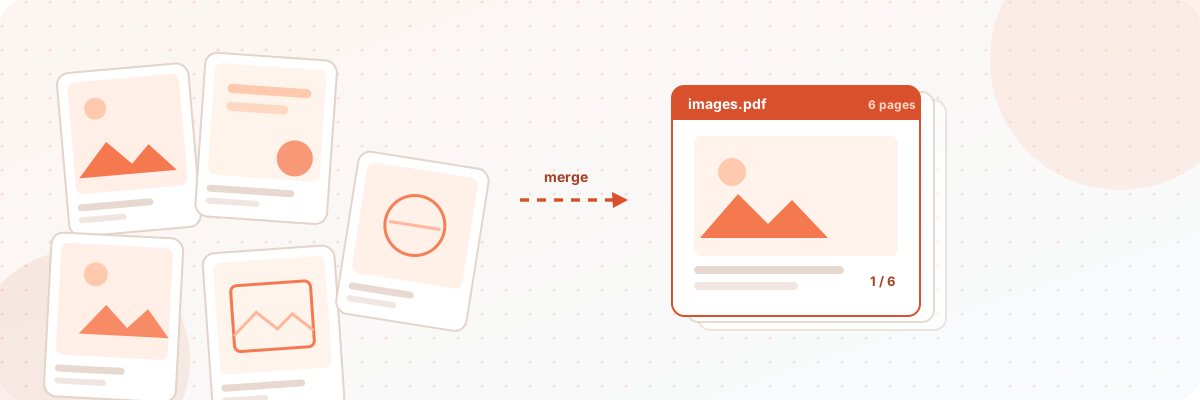
Combine multiple images into one PDF. Add files, reorder pages, pick size, then export. Runs in your browser — no upload, no signup.
JPG, PNG, WebP. Multiple files OK.
How this merger works
Three steps, and every one of them runs on your own machine — no server sees the file.
How it works
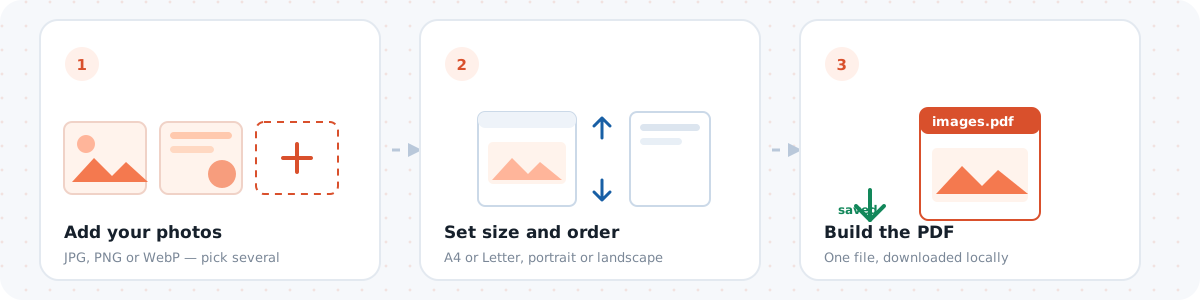
Each image becomes one PDF page, fitted to the page size you pick while keeping aspect ratio. Pages are added in the order shown above — use the up/down arrows to reorder. Everything runs locally; your images never leave your browser.
Typical use cases
Combining photos of receipts into a single expense claim, turning scanned contract pages into one tidy PDF, bundling homework or ID photos for an online submission, and archiving whiteboard photos after a meeting. Anywhere a form or portal asks for "one PDF file", this tool is the fastest path from a folder of images to a single document.
How to combine images into one PDF
- Open the tool and select your JPG or PNG images (multiple selection is supported).
- Check the order — pages appear in the order the images are listed.
- Click run. The PDF is built in your browser and offered as a download.
Your images never leave your device
The conversion uses the browser's own PDF capabilities. Your photos are read from disk, assembled into a PDF in memory, and handed back to you as a download. No upload, no server queue, no waiting for someone else's computer — and no copy of your documents sitting on a third-party service you have never heard of.
FAQ
What image formats are supported?
JPG, PNG and WebP. Other formats work only if your browser can decode them — HEIC files must be exported as JPG first.
Is there a page limit?
There is no fixed limit; practical limits come from your device's memory. Dozens of photos merge in seconds on an ordinary laptop.
What resolution is the PDF?
The PDF keeps each image's original resolution — no compression is applied, so a sharp photo makes a sharp page.
People also use this for…
Every tool below is also 100% local: no upload, no account, no server copy — the same privacy guarantee you get on this page.
- Remove the background before merging
Clean cut-outs make a much tidier combined PDF. - Edit the PDF you just built
Add text, stamps or repaired images to the merged file. - Add a text cover page
Write an introduction page and merge it in front.
PDF tools hub
← All PDF tools · Edit a PDF · Image → PDF · Text → PDF · DXF → PDF
Every tool on this strip processes your file inside the browser — no upload, no account, no limit.
How to turn images into a PDF
- Click the file picker and select one image, or several at once — JPG, PNG, WebP and most other formats your browser can display.
- Images are added in the order you pick them. Remove or reorder anything that ended up in the wrong place before building.
- Choose a page size (A4 and Letter are the usual choices) and an orientation; portrait suits documents, landscape suits slides and photos.
- Click Build PDF and save the file. Each image becomes one page, fitted to the page with its aspect ratio preserved.
How it works, step by step
Your selected files are read with the browser's File API — never uploaded. Each image is drawn onto a canvas so it can be re-encoded consistently, then embedded page by page into a PDF produced by jsPDF. Because the work happens on your device, the only limit on file count and size is your browser's memory, not someone else's quota. Nothing is retained after you close the tab, and there is no watermark on the output.
Keeping the file size sane
PDF size is driven mostly by image resolution. A 12-megapixel phone photo is far more detail than a PDF page needs — at 150–200 dpi an A4 page only requires about 1200–1600 pixels on the long edge. If your PDF comes out unexpectedly large, downscale the photos first, or use JPEG rather than PNG for photographic content. PNG is the right choice for screenshots, diagrams and anything with sharp text edges, since JPEG compression smears those. As a rule of thumb: photos → JPEG, line art and screenshots → PNG.
Privacy
Scanned contracts, ID documents, medical paperwork and photos of your home are exactly the files you should not hand to a random upload service. This tool processes them locally: no upload, no account, no copies left on any server. The PDF is generated in your browser and downloaded straight to your device.
Troubleshooting
- Images in the wrong order: remove them and re-select in the order you want; the build follows selection order.
- Photo appears rotated: the file carries an EXIF orientation flag that some browsers ignore. Rotate the image in your gallery app and rebuild.
- PDF is huge: switch photos to JPEG or reduce their resolution first — see the sizing note above.
- Image looks blurry in the PDF: the source is smaller than the page size. Use a higher-resolution original, or choose a smaller page.
- One image fails to add: it is probably an unusual format (HEIC from iPhones is a common one). Export it as JPG and try again.
- Nothing downloads: check that the browser is not blocking downloads from the site, and that a pop-up blocker is not intercepting the save.
More questions
How many images can I combine?
There is no fixed cap, but hundreds of full-resolution photos may exhaust browser memory. For very large batches, build several PDFs and merge them later.
Can I add a caption or page numbers?
Not with this tool — it is deliberately minimal. Use the PDF editor if you need to place text on the pages afterwards.
Does it work on a phone?
Yes. You can pick photos straight from your camera roll and save the PDF to your device, all offline after the page loads.